How to manage game updates (admin guide)
Update a game once — every PC copies it from the others over your lounge network, only while nobody plays.
Downloading the same 80 GB game on every PC wastes hours and internet. With Game updates, one PC brings the new version and the other PCs copy only the parts that changed, at network speed, checking every file.
1. Switch it on
- Go to Apps & Games → Settings. Turn on Game updates and choose the stores (Steam, Epic, Riot).
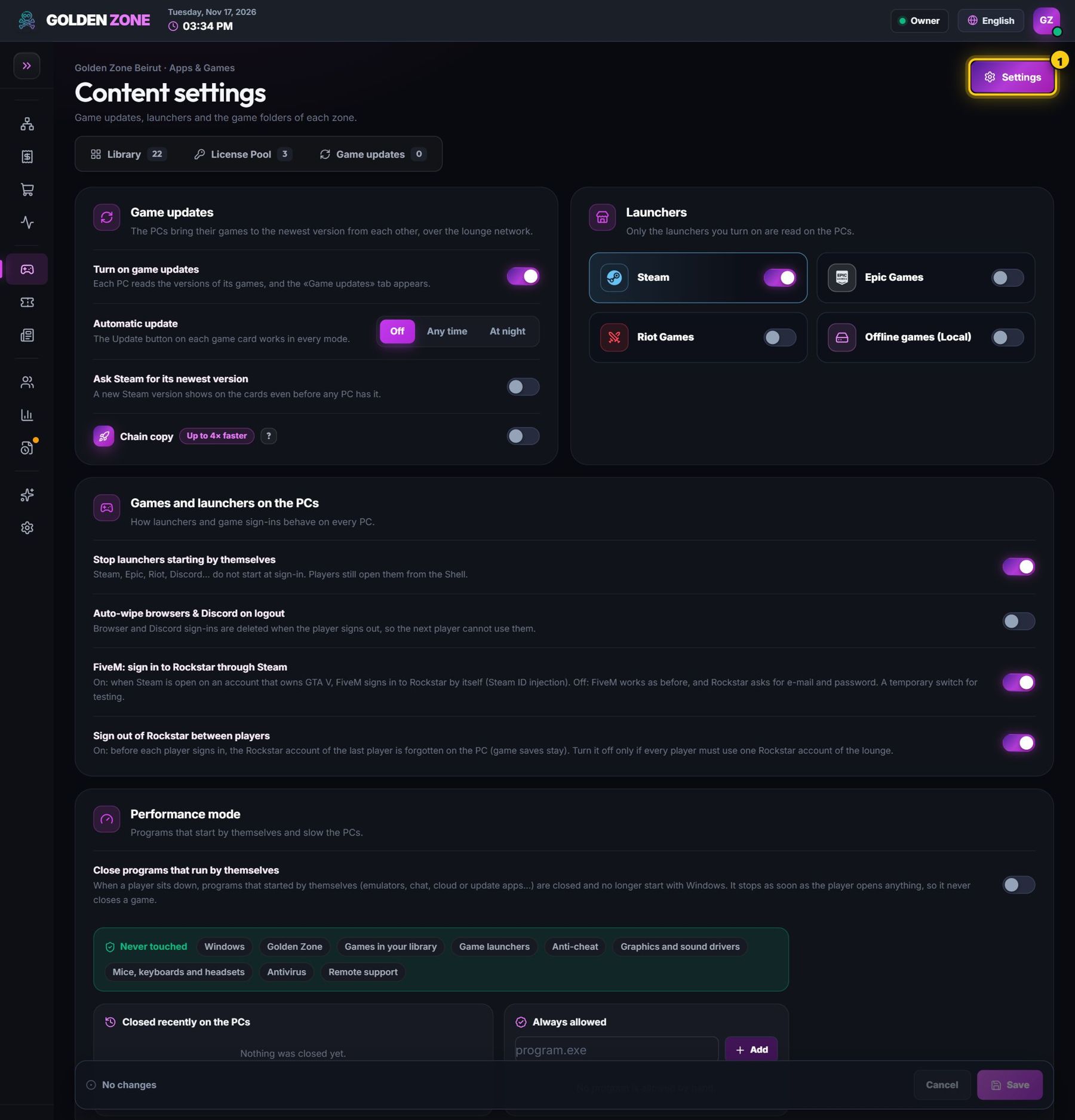
Game updates settings: stores, automatic mode and game folders per zone. - Check the game folders of each zone (where your games are installed).
- Choose Automatic: off, always, or only at night.
2. Read the Game updates page
- Open Apps & Games → Game updates. Each card is a game: the numbered squares are your PCs — green = up to date, orange = needs the update.
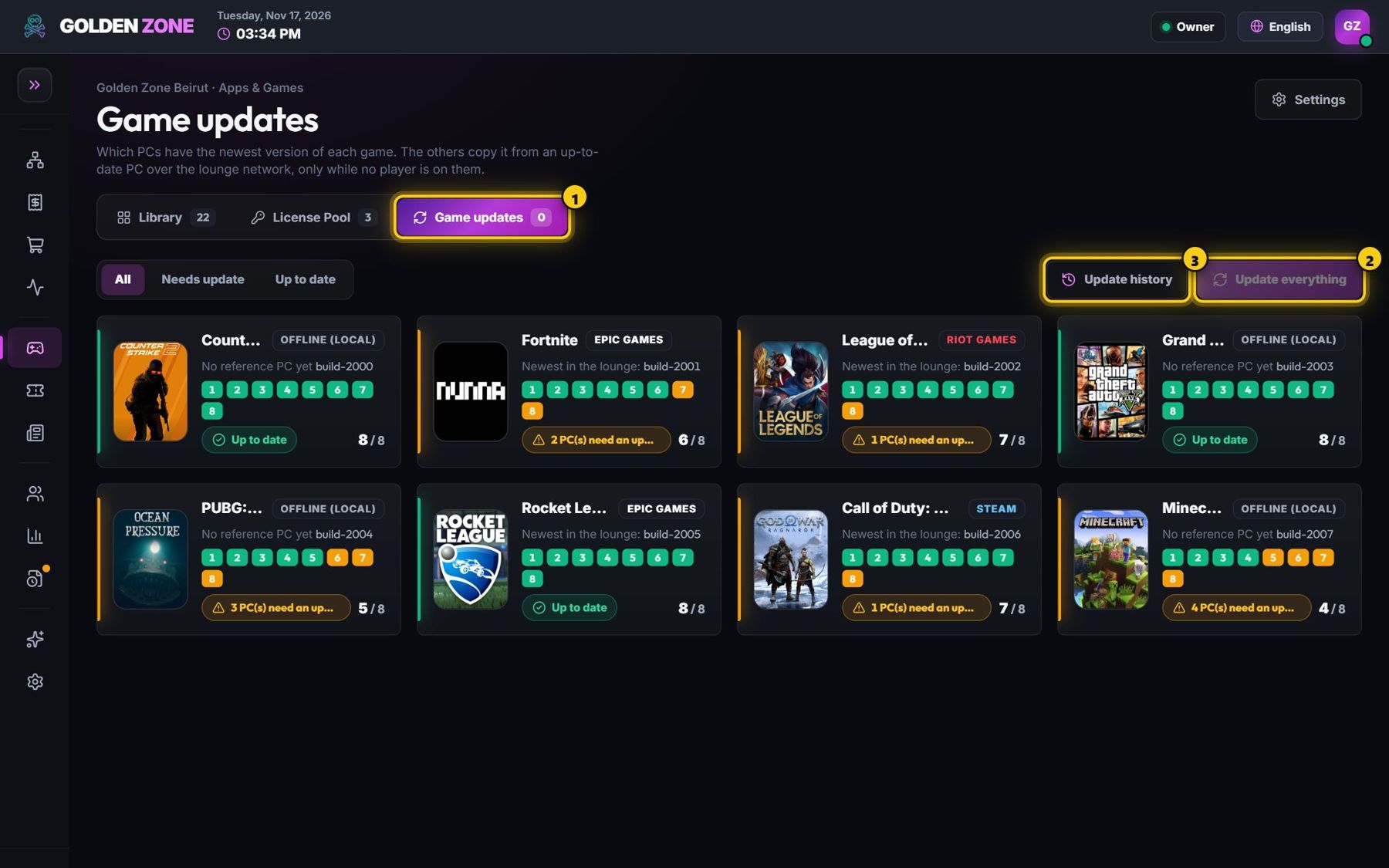
Every game, every PC, at a glance. - Press Update everything to update all games on all PCs, or open a game card to update it alone, or only some PCs.
- Update history shows every copy of the last 7 days: which PC, from which PC, how long, and the result.
3. Good to know
- A PC is updated only when no player is on it. The game is locked for players only on the PC being updated.
- A damaged game? Open its card and choose Repair — every file is checked and fixed.
- Chain copy (optional): PCs pass the update on while they receive it, so a full lounge is ready faster.
- Epic games can be updated from Epic's servers with a lounge Epic account (Apps & Games → Settings → Epic update account).
Keep free disk space on every PC: an update needs room for the changed files.